Designing your own CapCut templates is no longer just a “nice-to-have” skill. In 2026, templates are one of the fastest ways to edit consistently, protect your visual identity, and scale content production without burning out.
This in-depth guide walks you through how to build CapCut templates from the ground up, whether you are editing on mobile or desktop. You will also learn how to structure reusable workflows, avoid common mistakes, and turn templates into real creative assets - whether for personal branding, client work, or monetization.
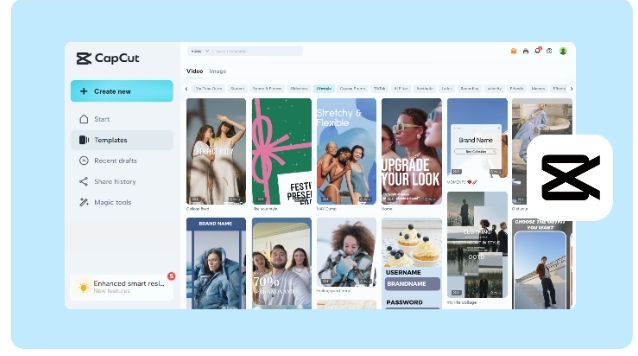
If you like to experiment with existing layouts before creating your own systems, browsing curated CapCut templates can help you understand pacing, transitions, and layout logic before you customize everything to your style.
What Exactly Is a CapCut Template?
A CapCut template is essentially a reusable project file that already contains your core editing decisions. This includes text styles, transitions, effects, music timing, animations, and layout positioning. Instead of starting every video from zero, you simply swap in new footage, update the text, and export.
Think of templates as editing blueprints. They remove repetitive work while keeping your videos visually aligned across platforms.
How to Build a CapCut Template Step by Step
Creating a Template on Mobile (CapCut App)
Start by opening the CapCut mobile app and tapping New Project. Before importing anything, select the correct aspect ratio based on where the video will be published. Vertical formats like 9:16 are ideal for TikTok, Shorts, and Reels, while 16:9 works best for YouTube, and 1:1 still suits Instagram feeds.
Once your canvas is set, import your videos or images and begin editing as you normally would. Trim clips, add transitions, layer text, apply filters, and choose background music. This is where you define your signature look and pacing.
When everything feels polished, save the project as a template. Give it a clear name that reflects its purpose, such as “TikTok_Energy_Edit” or “Brand_Reel_Clean_v1.”
To reuse the template later, open it again, replace the placeholder media with new clips, adjust timing if needed, and export. No rebuilding required.
Creating a Template on Desktop (CapCut for PC or Mac)
CapCut Desktop is ideal for creators who want more control and precision. Start a new project and import your footage, images, and audio files. Edit the video with transitions, overlays, animations, captions, and effects until it represents your ideal repeatable format.
Instead of exporting immediately, save the project file as your master template. This file becomes your base version. Every time you need a new video, duplicate the project, replace the media, tweak the text, and export the final result.
Desktop templates are especially powerful for long-form YouTube content, branded intros, outros, and client deliverables where consistency matters.
Advanced Strategies for High-Impact Templates
1. Design Templates Around Branding
Strong templates always reflect a clear visual identity. Use the same fonts, color palette, motion style, and transitions across all templates. Adding placeholders for logos, taglines, or outros makes every video instantly recognizable.
Many creators speed this process up by starting with free presets or trending CapCut layouts, then modifying them until the style feels uniquely theirs.
2. Lock In Timing and Motion Consistency
Consistent animation timing is what makes templates feel professional. Captions should animate the same way every time, transitions should follow a predictable rhythm, and visual effects should not feel random.
For short-form platforms, quick cuts every two to three seconds help maintain attention. Templates make it easy to preserve this pacing across dozens of videos.
3. Create Variations for Each Platform
One template rarely fits every platform perfectly. Smart creators build multiple versions of the same concept. A vertical edit for TikTok, a horizontal version for YouTube, and a square layout for Instagram posts can all share the same visual DNA while being optimized for each platform.
Clear naming conventions and organized folders keep this system efficient.
4. Respect Safe Zones and UI Overlays
Each platform places interface elements in different areas of the screen. Important text or visuals should stay centered and away from edges so they are not hidden by buttons, captions, or profile icons.
Templates should be designed with these constraints in mind from the beginning.
5. Build for Flexibility, Not Perfection
The best templates are adaptable. Avoid locking every clip into a fixed duration. Leave breathing room so users can drop in longer or shorter footage without breaking the flow. A flexible template gets reused far more often than a rigid one.
Common Template Mistakes That Hold Creators Back
Many beginners make their templates overly complex. Too many effects, fonts, or transitions can slow editing and reduce clarity. Simplicity almost always wins.
Another frequent mistake is skipping testing. Always replace the original clips once before using the template seriously. This helps catch spacing, timing, or animation issues early.
Ignoring export settings is also costly. A perfect template can still fail if the resolution or aspect ratio is wrong for the platform.
A Practical Template Creation Checklist
Before calling a template finished, confirm that the aspect ratio is correct, placeholders are clearly defined, transitions and animations are pre-set, and fonts and colors remain consistent.
Make sure there is space reserved for logos or watermarks, export settings are ready, and the file is stored in a clearly labeled folder. Finally, test the template with new footage to ensure it works smoothly.
Why Templates Change the Way You Edit
Templates dramatically reduce editing time. Once your favorite effects, transitions, and text styles are saved, producing new videos becomes a matter of minutes rather than hours.
They also protect your brand identity. When every video follows the same visual language, audiences recognize your content instantly, which builds trust and professionalism.
From a creative perspective, templates encourage experimentation. You can quickly test different moods, color schemes, or pacing styles without starting from scratch. They are also ideal for team collaboration or selling as digital products.
Creators who want to push efficiency even further often combine templates with automated cutting tools to synchronize edits and speed up production.
Why Template Skills Matter for Your Career
Knowing how to build strong CapCut templates is a genuine competitive advantage. Editors who use templates can deliver faster, maintain consistency for clients, collaborate more easily, and even create template packs as sellable assets.
For brands and agencies, templates increase perceived quality while reducing production time. For solo creators, they free up energy to focus on storytelling instead of repetitive tasks.
Final Thoughts
Creating CapCut templates is one of the smartest long-term investments you can make as a video creator. A small library of well-designed templates can completely transform how you work, helping you edit faster, stay consistent, and scale your content without stress.
If you want to fully master CapCut - from beginner basics to advanced workflows - joining a structured CapCut course can accelerate your progress and expose you to techniques used by top creators worldwide.
Frequently Asked Questions About CapCut Templates
1. A CapCut template is a reusable project that contains preset transitions, text, effects, and timing so you can quickly create new videos by swapping media.
2. You can create your own templates directly inside CapCut on both mobile and desktop, and it does not require any paid plan.
3. Templates can be shared via links or project files, making collaboration easy. You can also customize templates made by other creators or explore CapCut’s built-in template library.
4. The ideal aspect ratio depends on the platform you are publishing to, and using licensed or royalty-free music is essential to avoid copyright issues.
5. There is no limit to how many templates you can create, but organizing them well ensures they remain useful over time. Many creators also monetize their templates by selling them on digital marketplaces or personal websites.
Sign up for CapCut now and embrace your creativity!
Media Contact
Company Name: ByteDance
Contact Person: Capcut Team
Email: Send Email
City: Beijing
Country: China
Website: https://www.capcut.com